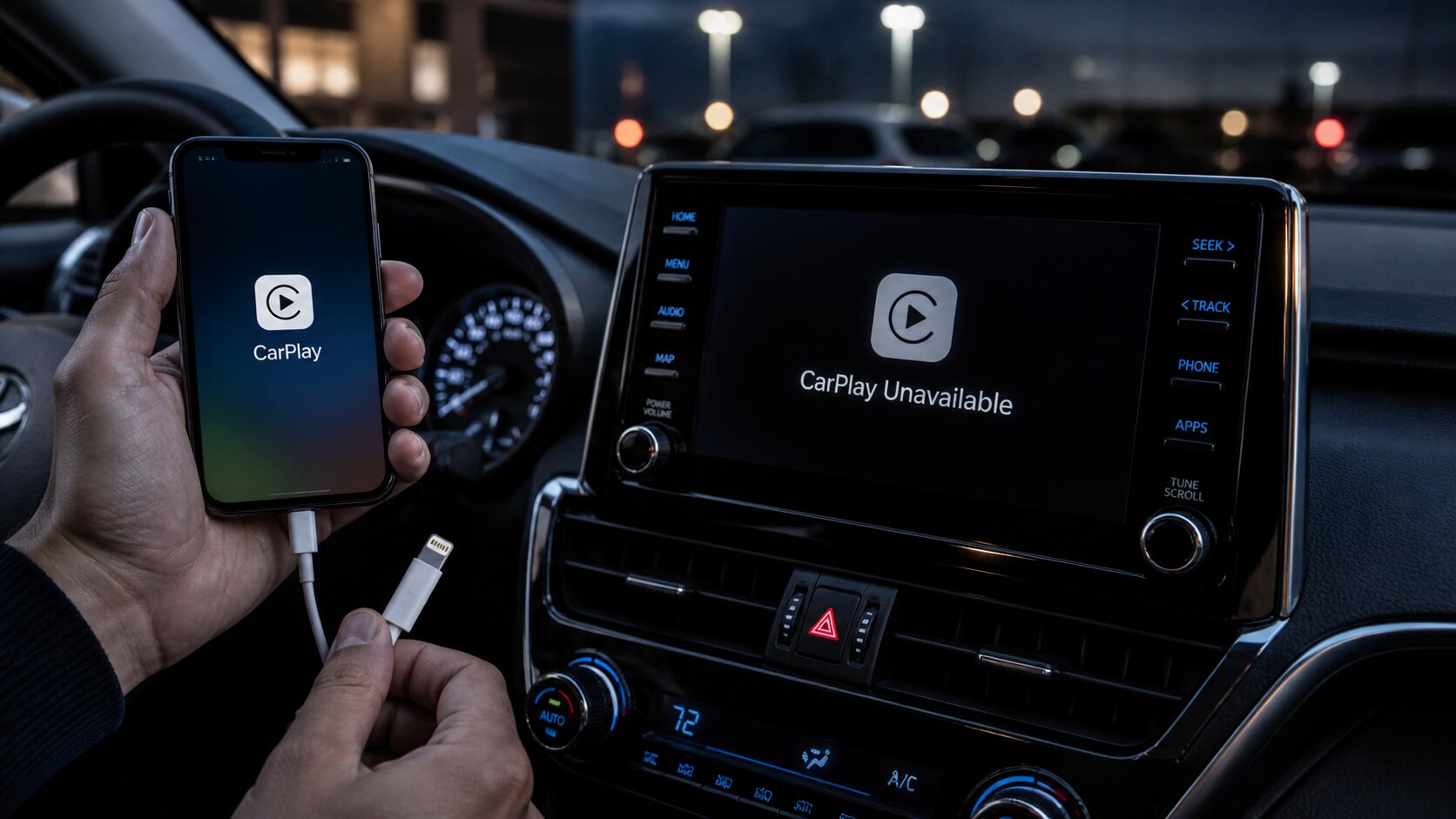
CarPlay dropouts: what’s actually happening (and why it’s so annoying)
I’m Brian O’Connor, based in Chicago, and I’ve spent enough time around vehicle electrical systems to tell you this: when Apple CarPlay drops, it’s rarely “random.” It just feels random because the failure is intermittent like a loose connector that waits until you hit a pothole on Lake Shore Drive.
Verified basics first. Apple CarPlay works two main ways: wired over USB (your iPhone talks to the head unit through a data connection) or wireless (CarPlay uses Bluetooth for initial handshaking, then Wi‑Fi for the heavy lifting). Either path can fail if the phone can’t maintain clean data transfer, stable power, or a reliable radio link.
This guide is a decision tree you can follow without special tools. We’ll start with the easiest, safest checks cable and port then move into wireless interference and software. If something’s unknown or varies by vehicle, I’ll say so plainly.
Step 0: Identify your setup in 10 seconds
If you plug in a cable: You’re using wired CarPlay. The usual culprits are cable quality, USB port wear/contamination, or the head unit/phone software getting cranky.
If you never plug in a cable: You’re using wireless CarPlay. The usual culprits are Wi‑Fi interference, Bluetooth handshake issues, VPN/security apps, or infotainment firmware quirks.
If your car supports both: Great because you can use one mode to diagnose the other.
Decision Tree A: Wired CarPlay keeps dropping
Wired should be the “boring reliable” option. When it isn’t, think like an engineer: data integrity + power integrity + mechanical integrity.
A1) First fork: does the phone also stop charging when CarPlay drops?
If YES (CarPlay drops and charging stops): That points to a physical connection problem cable, phone port, or vehicle USB port.
If NO (charging continues but CarPlay drops): That leans toward data-only issues cable not meeting spec, head unit hiccup, iOS/infotainment software conflict.
A2) Cable isolation (the cheapest “test instrument” you own)
I know it’s tempting to blame the head unit. Don’t. Start with the cable because it’s both common and easy to prove.
Try this:
1) Use a different cable you trust. If possible, use an Apple-branded Lightning cable (for older iPhones) or a reputable USB‑C cable (for newer iPhones). The key is that it must support data reliably not just charging.
2) Keep it short. Longer cables are more likely to have voltage drop and signal issues, especially if they’re thin or worn.
What you’re looking for: If dropouts disappear with a different cable, you’ve got your answer. Cables fail internally all the time broken strands near the connector from being bent at that exact angle your cupholder forces.
If you don’t have another cable: Borrow one for five minutes. This test is worth more than any forum thread.
A3) The “wiggle test” (gentle, not destructive)
With the car parked safely, connect your phone and start CarPlay. Now lightly move the connector at the phone end and at the vehicle USB end just enough to see if the connection is sensitive.
If moving it causes dropouts: That’s mechanical wear or contamination. Don’t jam anything in there yet; go to cleaning steps below.
A4) Clean the phone port and vehicle USB port (carefully)
This is where I see people get aggressive and make things worse. Ports are delicate. You’re not scraping carbon off a piston crown; you’re removing lint from tiny contacts.
Safe approach:
• Turn the car off and unplug everything.
• Use a flashlight to look into the iPhone port and vehicle USB port.
• If you see lint in the phone port (common), use a dry wooden toothpick very gently to lift debris out. No metal tools. No liquids.
• For the vehicle USB port, compressed air can help if used carefully (short bursts). Avoid blasting so hard you dislodge or damage anything.
What “fixed” feels like: The connector seats with a more positive click and doesn’t feel mushy. That little tactile difference matters; it’s like tightening a battery terminal properly instead of “good enough.”
A5) Try another USB port (if your car has one)
Not every USB port in every car supports CarPlay. Some are charge-only; some are data-enabled; some are routed through different modules. Your owner’s manual usually calls out which port supports smartphone integration.
If another known CarPlay-capable port works: The original port may be worn or internally damaged. That’s a real thing on high-mileage vehicles especially if someone yanked cables sideways for years.
A6) Rule out power management weirdness (yes, even on wired)
This sounds like software fluff until you’ve watched it happen: certain settings can cause iPhones to change how they handle connections when hot, low on battery health margin, or running heavy background tasks.
Quick checks:
• Make sure Low Power Mode is off while testing.
• If your phone is overheating (sun on the dash), cool it down and retest. Thermal throttling can destabilize radios and background processes even when wired.
• Close navigation/music apps and retry once. If stability improves, you may be seeing an app-level crash rather than a link-level failure.
A7) Reset the handshake: reboot phone + reset infotainment
If you’ve ever felt that mild annoyance when CarPlay drops right as your favorite track hits the chorus yeah. This step often fixes that kind of intermittent glitch.
Do this in order:
1) Restart your iPhone.
2) On the car side, reboot/reset infotainment using the method in your owner’s manual (varies widely by brand). Some systems reboot by holding down the volume/power knob; others require an on-screen menu.
3) Reconnect and test for at least 10–15 minutes of driving over imperfect pavement.
A8) If wired still drops: delete CarPlay pairing and set it up fresh
This is still “simple,” but it’s deeper than swapping cables.
On iPhone: Settings → General → CarPlay → select your vehicle → Forget This Car.
On vehicle: Delete/remove the phone from Bluetooth/phone list (the wording varies).
Then re-pair like it’s day one. If that fixes it, your old pairing profile was corrupted or conflicting with another saved device.
Decision Tree B: Wireless CarPlay keeps dropping
Wireless CarPlay is convenient and more sensitive. It’s basically asking your car to behave like a stable Wi‑Fi router while also being an automotive computer dealing with heat cycles, vibration, and whatever RF soup exists on today’s roads.
B1) First fork: does wired CarPlay work reliably?
If YES:Your issue is almost certainly wireless interference/handshake/software not your phone port or cable.
If NO or you can’t test wired:You may have broader infotainment instability or phone-side issues; still follow B steps, but keep A steps in mind too.
B2) Quick interference check: location matters more than people think
I’ve had wireless connections behave perfectly on quiet suburban roads and then fall apart downtown where every building is bouncing signals around like pinballs.
Test:
• Drive the same route where it usually drops.
• Then test again in a different environment open highway vs dense city streets vs near large industrial areas.
• If dropouts cluster in certain spots, that screams RF interference rather than “bad hardware.”
B3) Remove obvious RF troublemakers (temporarily)
You’re not permanently changing your life here you’re isolating variables like we do in engineering validation tests.
Try a clean run:
• Turn off any phone VPN temporarily (some VPNs interfere with how services route traffic). I can’t verify every VPN behavior universally; just know this is a common troubleshooting step across connectivity problems.
• Disable personal hotspot on your iPhone if it’s on.
• Disconnect other phones from the car’s Bluetooth list during testing if possible especially if someone else’s device keeps trying to grab priority.
• If your car has an onboard Wi‑Fi hotspot feature, try turning it off for one drive to see if stability changes. Not all vehicles implement this the same way; some coexist fine, others fight for channels.
B4) The “phone placement” test (it’s not superstition)
Your center console isn’t just storage it’s also a little RF cave lined with metal brackets, wiring looms, and sometimes wireless chargers that create heat. Put the phone somewhere else for one drive: cupholder vs dash mount vs passenger seat. Listen for that tiny relief when audio stops stuttering and maps stop freezing.
If placement changes stability:You’re likely dealing with signal attenuation or heat-related behavior rather than pure software bugs.
B5) Wireless charger note: heat can trigger dropouts
I like wireless charging in theory; in practice it often warms phones up while they’re running navigation + streaming audio + maintaining Wi‑Fi links. Heat doesn’t just reduce battery longevity it can cause performance throttling that makes connectivity less stable.
Test: Run wireless CarPlay without using the wireless charging pad for one trip. If dropouts improve, consider charging via cable (even if still using wireless CarPlay) or improving airflow around the phone.
B6) Reset wireless pairing cleanly
This is the wireless equivalent of swapping cables.
Steps:
1) On iPhone: Settings → General → CarPlay → Forget This Car.
2) In car infotainment: remove/delete phone from paired devices list.
3) Restart iPhone.
4) Re-pair from scratch with only one phone nearby if possible.
B7) Software reality check: update iOS and infotainment firmware (when available)
This is where I’ll be careful not to overpromise. Updates can fix connectivity bugs but they can also introduce new ones depending on model year and head unit supplier. Still, staying current is generally smart because both Apple and automakers do patch stability issues over time.
Do this safely:
• Update iOS when you can do it calmly at home not right before a road trip.
• Check for infotainment updates via your manufacturer’s official method (over-the-air updates if supported; dealer service bulletins if not). Availability varies widely by brand/model/year, so if your system never gets updates, that’s not on you it’s just how some older head units are supported.
The crossover checks that solve more cases than they should
I’ve driven plenty of modern trucks and performance cars where everything else feels rock-solid the steering has real weight, dampers settle quickly after expansion joints yet infotainment acts like it had too much coffee. These three checks cut through that frustration fast.
C1) Check for pocket lint plus “case pressure”
A bulky phone case can prevent full connector seating on wired setups. On wireless setups it can trap heat against the back of the phone. Try one drive without the case as a test (not forever).
C2) Turn off EQ/processing features temporarily
This won’t fix true disconnections but sometimes what people call “CarPlay dropping” is actually audio cutting out due to an app crash or audio pipeline glitch. Disable fancy sound processing modes in the car temporarily and see if stability improves. Not universal but easy to test and easy to undo.
C3) Verify you’re not fighting multiple assistants/apps at once
If Siri is trying to talk over another voice assistant app or navigation app constantly reasserting itself, things can get messy fast. Pick one nav app for testing and keep it simple: one music app, one map app.
If none of this works: what might actually be broken?
If you’ve swapped cables/ports (wired), reset pairings (wired/wireless), reduced interference (wireless), and updated software and it still drops then we move into less DIY-friendly territory:
Possible causes:
• A failing USB hub/module inside the infotainment system (wired).
• Head unit firmware instability specific to your model year/trim level (wired/wireless).
• An iPhone hardware issue affecting Lightning/USB‑C port integrity or Wi‑Fi/Bluetooth radios (wireless). I can’t diagnose that remotely; an Apple Store diagnostic can help confirm hardware faults without guessing.
• Vehicle-side electrical noise or grounding issues are possible but less common for CarPlay-specific dropouts; those typically show up as broader infotainment resets or other electrical oddities too.
A practical “one-drive” checklist I’d do before booking service
If I were heading out of Chicago traffic tomorrow morning and wanted this solved tonight:
1) Restart iPhone.
2) Test with a known-good short data cable (even if you prefer wireless).
3) Clean ports gently if anything looks questionable.
4) Forget/re-pair CarPlay fresh.
5) Do one drive with no VPN/hotspot and no other paired phones nearby.
6) Keep phone out of direct sun; avoid wireless charging pad for that test run.
The small win you’re chasing
The goal isn’t perfection as an abstract idea it’s getting back to that simple rhythm where directions stay locked in, music doesn’t hiccup, and you don’t have to glance down at your screen at 45 mph because something silently disconnected again. Once you isolate whether it’s cable/port mechanics, wireless interference, or software handshake problems, fixes get straightforward fast and you stop throwing parts at guesses.
0 comments
Join the discussion around this article.
Please login to comment.